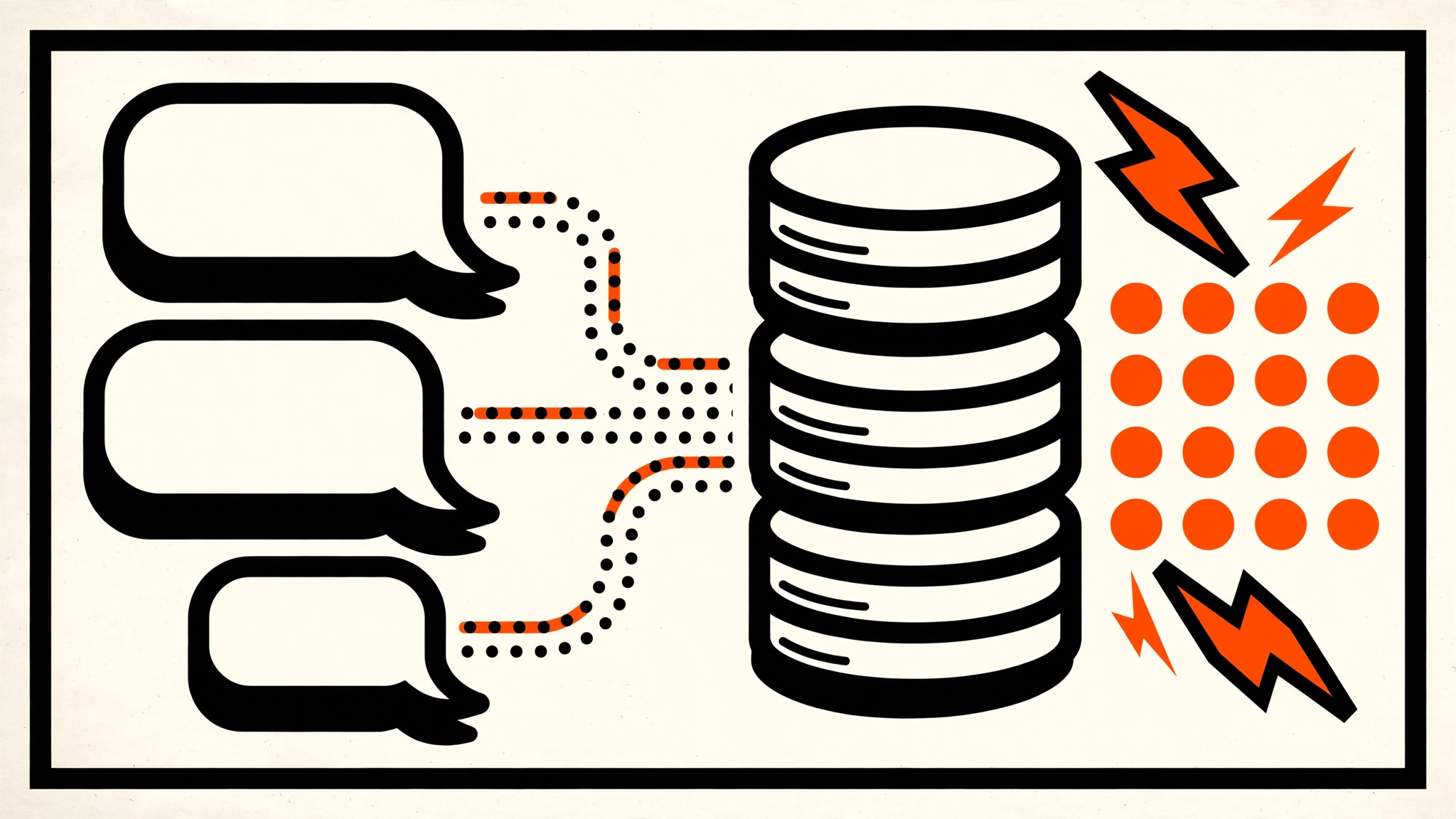
A plain ChatGPT-style bot connected to Telegram has one embarrassing habit: when it doesn’t know the answer, it invents one. Ask it about your refund policy, your API’s rate limits, or last month’s pricing change, and you’ll get a confident, fluent, completely fabricated reply. That fabrication has a name — hallucination — and it’s the reason most “AI chatbots” never survive contact with real customers.
RAG (Retrieval-Augmented Generation: the technique of fetching relevant passages from your own documents and handing them to the model before it answers) fixes exactly this. The model stops guessing because it has the source material in front of it.
By the end of this guide, you will have a working Telegram bot that answers questions from your own documents: Supabase stores the document embeddings, n8n’s AI Agent retrieves the relevant chunks on every question, and OpenAI’s gpt-4o-mini writes the final answer. No custom server code, no vector-database vendor to learn — just one n8n workflow, one Supabase project, and two SQL statements.
What you’ll set up:
- A Supabase project with the pgvector extension, a
documentstable, and amatch_documentssearch function - A one-off ingestion workflow that chunks your documents and stores their embeddings
- A chat workflow: Telegram Trigger → AI Agent (with Supabase Vector Store as a tool) → Telegram reply
- Conversation memory so follow-up questions (“and what about the pro plan?”) work
Prerequisites
- A running n8n instance (1.x, self-hosted or n8n Cloud, as of October 2026) with the AI Agent node available. Your n8n must be reachable over HTTPS — Telegram only delivers webhooks to public HTTPS URLs.
- A free Supabase account (the free tier is enough for this build).
- An OpenAI API key with billing enabled. Embeddings via
text-embedding-3-smallcost roughly $0.02 per million tokens — ingesting a 100-page manual costs a few cents. - A Telegram bot token from @BotFather (send
/newbot, follow the prompts, copy the token).
Example terminology — replace these everywhere they appear:
<your-openai-key>— your OpenAI API key<your-supabase-url>— your project’s URL from Supabase Dashboard → Project Settings → API<your-supabase-service-key>— theservice_rolekey from the same page (used server-side by n8n; never ships to a browser)<your-telegram-token>— the token BotFather gave you
How the pieces fit
The request flow looks like this:
Telegram user asks a question
        │
        ▼
Telegram Trigger (webhook fires on each message)
        │
        ▼
AI Agent node
  ├── OpenAI Chat Model (gpt-4o-mini) — writes the answer
  ├── OpenAI Embeddings (text-embedding-3-small) — turns the question into a vector
  ├── Supabase Vector Store (tool) — calls match_documents() to find similar chunks
  └── Memory — remembers the last N exchanges for follow-ups
        │
        ▼
Telegram node — sends the answer back to the same chat
The key insight: the AI Agent decides on its own when to search your documents. You don’t write retrieval logic — you give the agent a tool (“search the knowledge base”) and a system prompt (“answer only from retrieved context”), and the model calls the tool whenever the question needs facts.
Step 1 - Create the Supabase project and enable pgvector
Create a project at supabase.com, then open the SQL Editor and run one statement. pgvector is a Postgres extension (an add-on module) that adds a native vector column type and similarity-search operators to your database:
create extension if not exists vector;You should see “Success. No rows returned.” That’s the entire infrastructure change — your relational database is now also a vector database. No separate service, no second API key.
Step 2 - Create the documents table and the match_documents function
Run this in the Supabase SQL Editor:
create table documents (
  id bigserial primary key,
  content text not null,
  metadata jsonb default '{}'::jsonb,
  embedding vector(1536)
);

create index on documents
  using hnsw (embedding vector_cosine_ops);
Here’s what each part does:
content text— the actual text chunk the bot will read.metadata jsonb— a free-form JSON column for the source filename, page number, or URL. The agent can cite these, so keep them meaningful.embedding vector(1536)— the 1,536-number fingerprint of the chunk, produced by OpenAI’stext-embedding-3-small. The dimension must match the embedding model exactly — change the model later and you must re-embed everything.- The
hnswindex — HNSW (Hierarchical Navigable Small World) is the recommended approximate nearest-neighbor index for pgvector in 2026. Without it, every query scans the whole table; fine for a few thousand rows, painful beyond that.
Now the search function, which n8n’s Supabase Vector Store node calls on every question:
create or replace function match_documents (
  query_embedding vector(1536),
  match_threshold float,
  match_count int
)
returns table (
  id bigint,
  content text,
  metadata jsonb,
  similarity float
)
language sql stable
as $$
  select
    documents.id,
    documents.content,
    documents.metadata,
    1 - (documents.embedding <=> query_embedding) as similarity
  from documents
  where 1 - (documents.embedding <=> query_embedding) > match_threshold
  order by documents.embedding <=> query_embedding asc
  limit match_count;
$$;
What the unfamiliar pieces mean:
<=>is pgvector’s cosine-distance operator: 0 means identical, 2 means opposite. Subtracting from 1 converts it to an intuitive similarity score between 0 and 1.match_thresholdfilters out weak matches (start at 0.5, tune toward 0.7–0.8 later).match_countcaps how many chunks the agent sees (4–6 is a good starting point — more chunks means more tokens on every answer).
Verify it exists: in the SQL Editor, run select * from pg_proc where proname = 'match_documents'; — one row means the RPC is registered and callable.
Warning: create this function in the
publicschema (the SQL Editor default) and use theservice_rolekey in n8n. The anonymous key is subject to Row Level Security — if you enable RLS ondocumentslater without a policy, retrieval silently returns zero rows and your bot will cheerfully answer “I don’t know” to everything.
Step 3 - Ingest your documents into the vector store
This is a separate, one-off workflow — you run it whenever your documents change, not on every chat message.
- Create a new workflow with a Manual Trigger.
- Add whatever loads your source material: a Google Drive node for docs, an HTTP Request for URLs, or Read Binary Files for local PDFs followed by an Extract from File node.
- Add a Recursive Character Text Splitter node: chunk size ~800–1,000 characters, overlap ~100–200. Chunk size is the single most-tuned parameter in RAG — too large and the retrieved chunk is mostly irrelevant filler; too small and the answer loses context. Start at 1,000/200 and adjust based on test answers.
- Add the Supabase Vector Store node in insert mode: connect your Supabase credentials (
<your-supabase-url>+<your-supabase-service-key>), set the table todocuments, and attach an Embeddings OpenAI sub-node with modeltext-embedding-3-smalland your<your-openai-key>. - Execute the workflow once.
Verify: back in Supabase, run select count(*), count(embedding) from documents; — the two counts should match, meaning every chunk got its vector. If count(embedding) is lower, the embedding step failed on some items (usually a rate-limit error — see Step 7).

Repetitive support questions — pricing, policies, how-tos — are exactly what a grounded RAG bot handles well. Photo: Pexels.
Step 4 - Build the chat workflow: Telegram Trigger to AI Agent
Create a second workflow — this is the live one.
4.1 — Telegram Trigger. Add a Telegram Trigger node, create a Telegram API credential with <your-telegram-token>, and leave the update type on messages. n8n registers the webhook with Telegram automatically. Then click Listen for test event and send your bot any message — you should see the message payload arrive in the node output. If nothing arrives, your n8n isn’t reachable over public HTTPS (Telegram refuses plain-HTTP webhooks), or the token is wrong.
4.2 — AI Agent. Add an AI Agent node after the trigger. The node’s prompt field receives the user’s message — use an expression pointing at the trigger’s text output (the incoming message text).
4.3 — Attach the chat model. Click the plus under the agent’s chat model slot and add an OpenAI Chat Model: credential with <your-openai-key>, model gpt-4o-mini. This model is fast and roughly an order of magnitude cheaper than flagship models — plenty for answer-writing, since the facts come from retrieval. Set temperature to 0.1–0.3: low temperature keeps a support bot factual; high temperature is for creative writing, and a support bot that improvises is a liability.
4.4 — Attach the vector store as a tool. Click the plus under tools and add the Supabase Vector Store node — the same credential and documents table as Step 3, but in retrieval mode, pointing at your match_documents function. In the node options, set how many chunks to retrieve (top K ≈ 4) and the similarity score threshold (≈ 0.5 to start). The agent will now call this tool by itself whenever a question needs document facts.
4.5 — Write the system prompt. This is the highest-leverage text in the whole build:
You are a support assistant for [your product/docs]. Answer ONLY from the knowledge-base tool results. If the retrieved passages don’t contain the answer, say you don’t know and offer to connect the user with a human. Never invent policies, prices, or dates. Cite the source document for each factual claim.
The “say you don’t know” instruction is doing real work: without it, models confidently fabricate specifics. With it, plus retrieval, hallucinations drop to near zero on in-scope questions.
4.6 — Cap the agent’s loops. Set the AI Agent’s Max Iterations to 5–10. This is your circuit breaker: if the model starts calling the search tool in circles, the run halts instead of burning tokens forever.
4.7 — Structured output (optional). If you want citations in a machine-readable shape, attach a Structured Output Parser and define a small schema (answer text + list of sources). Skip it for v1 — a well-written system prompt already produces cited answers in plain text.
Step 5 - Add conversation memory
Without memory, “and what about the pro plan?” is a brand-new question with no context. Click the plus under the agent’s memory slot and add a memory sub-node.
The choice, honestly: n8n’s built-in window memory (labeled Window Buffer / Simple Memory depending on your version — node names shift between releases) keeps the last N exchanges per session. It’s the right default for a single-instance bot. Redis or Postgres chat memory survive restarts and work across queue-mode workers — upgrade when the bot matters enough that a restart wiping conversation history would be a real incident.
| Memory | Survives restart? | Use when |
|---|---|---|
| Window Buffer / Simple Memory | No | Prototyping, single n8n instance |
| Redis Chat Memory | Yes | Production, fast session memory |
| Postgres Chat Memory | Yes | Production, auditable history |
Two settings matter more than the backend:
- Session ID = one per user. Use the Telegram chat ID from the trigger output as the session key. Get this wrong — a hardcoded session ID — and every user shares one conversation, which is both a privacy bug and a confusion bug.
- Context window length. Default is often 5 exchanges, which is barely a greeting. Set 10–20. Every remembered exchange is re-sent to the model as tokens on each reply, so 50 costs meaningfully more than 10 without improving most answers.
Note: for a full deep-dive on n8n agent memory — the three bugs that break it and when to switch backends — see n8n AI Agent Memory Explained.
Step 6 - Send the reply back to Telegram
Add a Telegram node after the AI Agent, operation Send Message: the chat ID comes from the original trigger message, and the text is the agent’s output. Keep formatting conservative — Telegram’s MarkdownV2 breaks on unescaped characters, so plain text or simple HTML parsing is safer for model-generated answers.
Activate the workflow (toggle Active in the top right — test webhooks only work while you’re listening; the production webhook only fires on an active workflow). Send your bot a question from your documents, then a follow-up that depends on the first answer. You should get a grounded reply, then a contextual follow-up.

Once the bot handles the routine questions, the human team only sees the exceptions. Photo: Pexels.
Step 7 - Test end to end and fix the common failures
Run this checklist before telling anyone the bot exists:
- In-scope question (“What’s the refund window?”) → answered with a citation. If it says “I don’t know” despite the doc being ingested, your
match_thresholdis too high or the chunking split the answer across two chunks — lower the threshold to 0.4 or shrink chunk size. - Out-of-scope question (“Who won the World Cup?”) → “I don’t know.” If it answers anyway, your system prompt’s refusal instruction is too weak — strengthen it.
- Follow-up (“and for annual plans?”) → uses the previous turn. If not, the session ID isn’t per-user or the memory window is too small.
- Empty knowledge base edge → with zero documents ingested, every answer should be “I don’t know,” not a hallucination. Test this deliberately.
The failures you’ll actually hit:
- Webhook never fires: n8n not on public HTTPS, or you’re testing with the test webhook URL while not listening. Activate the workflow for the production URL.
- OpenAI 429 rate limits during ingestion: the embedding step hammers the API with one request per chunk. Add a Wait node or batch items (50–100 per batch) in the ingest workflow.
- Retrieval returns junk: usually chunk size (too big) or threshold (too low, letting weak matches in). Tune one at a time: fix threshold at 0.6, vary chunk size, read the answers.
- Bot answers in the wrong language: add “reply in the user’s language” to the system prompt.
- Costs creep: log per-execution token usage for a week. The usual surprise is the memory window — 30 remembered exchanges on every reply adds up fast on a busy bot.

Start with a narrow document set — one manual, one FAQ — and widen it only after the retrieval quality is solid. Photo: Pexels.
What this setup doesn’t do
Honest limits, so you size the project correctly: this build handles text only — voice notes and document uploads need extra nodes (transcription, file extraction) before the agent. The Supabase free tier caps at 500 MB of database storage, which is thousands of document chunks but not a whole wiki. Multi-user access control (“support sees everything, customers see the public FAQ”) needs either separate tables per audience or RLS policies on the anon key — the service_role key used here bypasses RLS entirely, so don’t expose it anywhere but n8n. And I didn’t benchmark retrieval quality across embedding models here — text-embedding-3-small is the sane default, not a measured winner.
If you later want the same pattern on WhatsApp instead of Telegram, the architecture is identical — only the trigger and reply nodes change. See How to Build a WhatsApp AI Chatbot with n8n.
FAQ
How much does it cost to run?
For a small bot: Supabase free tier ($0), n8n self-hosted ($0 plus your server, or n8n Cloud from ~$20/month), OpenAI embeddings at ~$0.02 per million tokens (a 100-page manual embeds for cents), and gpt-4o-mini answers at a fraction of a cent each. The bill that surprises people is chat history re-sent on every turn — keep the memory window at 10–20.
Why Supabase instead of Pinecone or Qdrant?
Because it’s Postgres you already understand: one database holds your users, your content, and your vectors, with no second vendor, no second bill, and SQL you can debug. Pinecone or Qdrant win past millions of vectors or when you need dedicated vector infrastructure — below that, Supabase plus pgvector is simpler and cheaper.
Can the bot cite its sources?
Yes. Store the filename or URL in the metadata column during ingestion, and instruct the system prompt to cite sources for factual claims. The match_documents function already returns metadata with every hit — the agent just needs permission and instruction to use it.
What happens when my documents change?
Re-run the ingestion workflow (Step 3). For documents that update often, schedule it nightly and delete-then-reinsert changed sources so stale chunks don’t outvote fresh ones — a source field in metadata plus a delete-by-source step keeps this clean.
Key Takeaways
- RAG beats prompting for factual bots — retrieval grounds the model in your documents, and a “say you don’t know” system prompt converts the remaining uncertainty into an honest refusal instead of a hallucination.
- Supabase + pgvector is two SQL statements —
create extension vector, one table, onematch_documentsfunction, and you have a vector database inside the Postgres you already run. - The AI Agent node does the orchestration — Telegram Trigger in, chat model + Supabase tool + memory attached, Telegram reply out. You configure tools and prompts, not retrieval code.
- Tune three numbers before anything else — chunk size (~1,000 chars), similarity threshold (start 0.5, raise toward 0.7), and memory window (10–20 exchanges). Most “bad RAG” is one of these three.
Next: ingest one real document set this week — a single FAQ page is enough — and run the four tests in Step 7 against it. If retrieval misses, check whether the answer was ever in a chunk (chunking problem) before blaming the embedding model.
Images: Pexels